
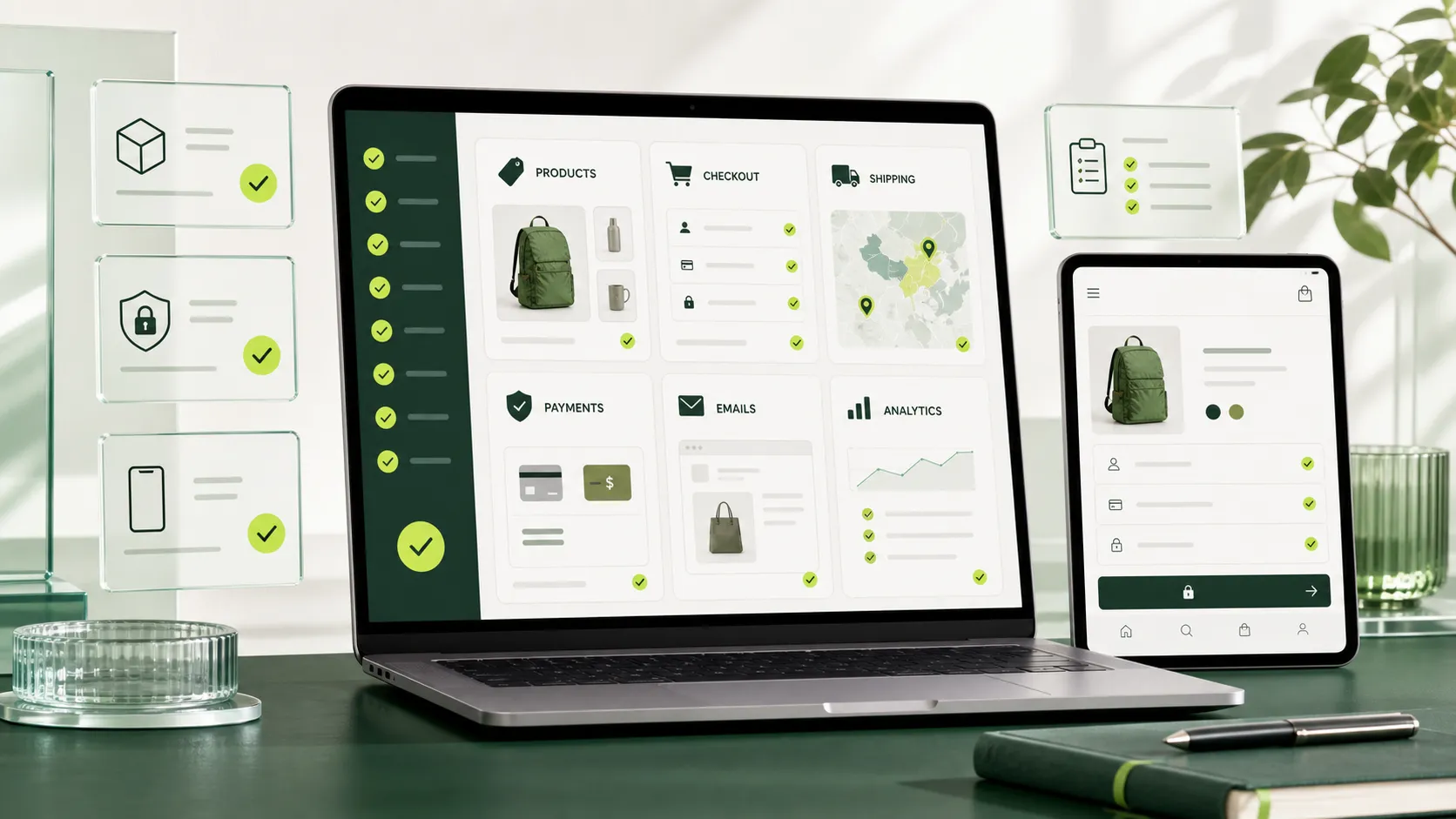
Launching a WooCommerce store is not simply a matter of making the website public.
A product page can look polished while the real buying journey still contains expensive friction: the wrong shipping method, an unclear variation, a payment that never reaches the correct order status, or an email that leaves both the customer and store team confused.
The safest launch process is to test the store as a complete business system—not as a collection of attractive pages.
This WooCommerce launch checklist covers the 15 areas I would review before a new store or major redesign goes live. It is written for store owners, agencies and developers who want a practical final quality-assurance process without adding unnecessary complexity.
Quick WooCommerce pre-launch checklist
Before launch, confirm that you have tested:
- Store identity, currency and selling locations
- Product data and variations
- Stock, backorders and inventory messages
- Shipping zones and delivery options
- Tax configuration
- Payment gateways in test mode
- The complete checkout journey
- Coupons and promotional rules
- Transactional emails
- Customer accounts and password recovery
- Legal and support information
- Mobile usability and accessibility
- Performance and Core Web Vitals
- Security, backups and staging
- Analytics and conversion tracking
Checking the boxes is useful. Completing a realistic test order for every important customer scenario is better.
1. Confirm the store’s core settings
Start with the basic settings that influence almost every order:
- Business address
- Currency and currency display
- Countries or regions where you sell
- Countries or regions where you ship
- Tax calculation settings
- Coupon availability
- Weight and dimension units
A small error here can create inconsistent prices, shipping options or tax behavior throughout the store. Use the same address and currency details that the business uses in its payment, fulfilment and accounting workflows.
WooCommerce provides a setup checklist for products, payments, customization, tax, shipping and launch. Treat that checklist as a starting point, then add the business-specific tests in this article.
2. Review every important product type
Do not review only the easiest product. Test at least one example of every product structure used by the store:
- Simple product
- Variable product
- Virtual or downloadable product
- Grouped or bundled product, when applicable
- Subscription, booking or membership product, when applicable
Check titles, descriptions, prices, sale dates, SKU values, images, categories, attributes and related products. For variable products, select every meaningful combination and verify that its price, image, stock and availability message change correctly.
The product page should answer the questions a buyer needs to make a decision. If customers must message the business to understand size, delivery time or what is included, the page is not finished.
3. Test inventory and backorder behavior
Inventory problems often appear only after a product becomes unavailable.
Test these scenarios where they apply:
- In-stock product
- Low-stock product
- Out-of-stock product
- Backordered product
- Variation with different stock from its parent product
- Product with purchase limits
Confirm that unavailable items cannot be purchased accidentally and that backorder messages set the right expectation. Check whether stock is reduced at the correct point in the order process and whether cancelled or failed orders return inventory as expected for the store’s workflow.
4. Validate shipping zones from real addresses
Shipping zones determine which delivery methods a customer sees. WooCommerce matches a customer to one zone, using the first matching zone in the configured order.
That makes the order of zones important. A narrow local zone should normally sit above a wider national zone. Otherwise, a customer may match the broader rule before WooCommerce reaches the specific one.
Test addresses from:
- A local delivery area
- A standard domestic area
- A remote or higher-cost region
- An unsupported location
- A location covered by the fallback “Rest of the world” zone, if used
For each address, verify the method name, price, free-shipping threshold, estimated delivery message and any local-pickup option. If the business ships products with different sizes or weights, test those differences too.
5. Check tax rules with qualified guidance
Tax settings depend on where the business operates, what it sells and where customers are located. A developer can configure the website, but the business should confirm tax obligations with a qualified local professional.
On the website, verify:
- Whether catalogue prices include or exclude tax
- Whether checkout totals use the expected address
- Whether shipping is taxable where required
- Whether invoices and order emails display tax clearly
- Whether exempt customers or zero-rated products behave correctly, if applicable
Use several representative addresses and product types. Do not assume one successful checkout proves every tax rule is correct.
6. Test each payment gateway safely
Every enabled payment method needs its own test. A card gateway, bank transfer and cash-on-delivery method can create different order statuses and different instructions for the customer.
Use the gateway’s test or sandbox mode whenever available. Do not place live transactions simply to see whether the checkout works.
For each method, verify:
- Successful payment
- Failed or declined payment
- Cancelled payment or customer return
- Correct WooCommerce order status
- Gateway reference saved in the order
- Customer and admin email notifications
- Refund flow, when supported
- Webhook or callback delivery
The order notes are often the fastest way to understand what the gateway did. If a payment succeeds at the provider but the WooCommerce order remains pending, investigate the callback, credentials, plugin conflict or server communication before launch.
7. Complete the entire checkout journey
A checkout test should begin before the checkout page and finish after the order reaches the team responsible for fulfilment.
Run a realistic journey:
- Find a product through navigation or search.
- Select the correct variation.
- Add it to the cart.
- Change quantity or remove an item.
- Apply an eligible coupon.
- Enter billing and shipping details.
- Choose delivery and payment methods.
- Place the order.
- Review the confirmation page.
- Check the order in WordPress and the customer’s email.
Repeat the journey on a phone. Pay attention to keyboard behavior, address fields, validation messages, sticky elements and payment widgets. A technically functional checkout can still be frustrating if the customer cannot understand what went wrong.
8. Verify coupons and promotional logic
Coupons can quietly create pricing mistakes when rules overlap.
Test:
- Minimum and maximum spend
- Product or category restrictions
- Usage limits
- Individual-use settings
- Free-shipping requirements
- Expiry dates and time zones
- Sale-item exclusions
Write a short expected result for each important promotion before testing it. This makes it easier to spot a rule that is technically working but commercially wrong.
9. Review every transactional email
Order emails are part of the customer experience and the store’s internal workflow.
Trigger the emails used by the business, including:
- New order
- Processing order
- Completed order
- Failed or cancelled order
- Refunded order
- New account
- Password reset
Check the sender name, reply-to address, logo, colours, subject line, item details, totals, tax, shipping, payment instructions and support contact. Make sure internal recipients are correct and confirm that the messages reach a real inbox without landing in spam.
An SMTP or transactional email service can improve deliverability, but it still needs to be configured, authenticated and tested.
10. Test customer accounts and password recovery
If accounts are enabled, test the complete account lifecycle:
- Registration during checkout
- Registration from the account page
- Email verification, when used
- Login and logout
- Forgotten-password flow
- Address editing
- Order history
- Downloads, subscriptions or saved payment methods, when applicable
Decide whether guest checkout supports the business. Requiring an account can help repeat customers in some stores, but it can also add friction to a one-time purchase. The choice should match the customer journey, not a default setting.
11. Make policies and support information easy to find
Customers should not have to search for the rules that affect their purchase.
Review the store’s:
- Privacy policy
- Terms and conditions
- Shipping and delivery information
- Returns and refunds policy
- Contact details
- Cookie notice, where required
- Warranty or product-specific conditions
Link the appropriate pages from the footer, checkout and relevant product pages. Policy content should reflect the actual business process. A template that promises a return workflow the business cannot deliver creates risk rather than trust.
12. Test mobile usability and basic accessibility
Do not treat desktop as the default and mobile as a smaller version.
On at least one real phone, check:
- Product gallery gestures
- Variation controls
- Add-to-cart visibility
- Cart and mini-cart behavior
- Checkout field types
- Error message placement
- Payment widget usability
- Menu, search and filters
- Text size and colour contrast
- Tap-target spacing
Navigate with a keyboard on desktop and confirm that focus states are visible. Use clear form labels and descriptive button text. These checks improve the experience for more users and often make the buying journey clearer for everyone.
13. Measure performance on the pages that make money
The homepage is not the only page worth testing. Measure representative product, category, cart and checkout pages on mobile and desktop.
Look for:
- Slow server response
- Oversized product and hero images
- Layout shifts from galleries, reviews or banners
- Heavy page-builder sections
- Too many third-party scripts
- Uncached catalogue pages
- Cart fragments or personalization that affect caching
Be careful with aggressive optimization around cart, checkout, account pages and dynamic fragments. A faster score is not useful if the cart becomes inconsistent.
For a practical diagnostic sequence, read my guide to WordPress speed optimization.
14. Confirm security, backups and a safe deployment path
Before launch, create a verified backup of files and the database. Know how the backup will be restored; a backup that has never been tested is only an assumption.
Also confirm:
- WordPress, WooCommerce, theme and extensions are intentionally updated
- Unused administrator accounts are removed
- Strong passwords and appropriate roles are used
- SSL works across the store
- Staging is not indexed by search engines
- Debug output is not visible to visitors
- Scheduled tasks and webhooks are running
- A rollback plan exists for the launch window
Use staging for risky changes and gateway troubleshooting. Avoid making unrelated plugin or design changes immediately before launch.
15. Set up analytics around useful business actions
Pageviews alone cannot explain whether the store works.
Track the events needed to understand the buying journey, such as:
- Product view
- Add to cart
- Begin checkout
- Coupon use
- Purchase
- Payment error
- Form submission or support enquiry
Complete a test order and confirm that the event names, product values and currency are correct. Prevent duplicate purchase events when a customer refreshes the confirmation page.
Analytics should help the team find friction and make decisions. It should not collect data without a clear purpose or appropriate privacy controls.
A practical launch-day sequence
When the checklist is complete, use a controlled launch sequence:
- Freeze non-essential content and plugin changes.
- Create a fresh backup.
- Deploy the reviewed version.
- Clear only the caches that need clearing.
- Run one final purchase from product discovery to email receipt.
- Confirm search visibility and canonical URLs.
- Monitor orders, payments, email delivery and server errors.
- Keep the person responsible for fulfilment informed.
For a larger store, prepare a short launch document with owners for payments, shipping, customer support and technical rollback. Clear responsibility reduces delays when something needs attention.
Frequently asked questions
How long does a WooCommerce pre-launch check take?
It depends on the number of product types, gateways, shipping regions and custom workflows. A small store may need several focused hours; a complex store needs a structured test plan across multiple roles. Estimate by the number of meaningful customer scenarios, not only the number of pages.
Can I test WooCommerce checkout without charging a real card?
Yes. Many payment gateways provide a test or sandbox mode. Use the method documented by the specific gateway and confirm that WooCommerce receives the correct order status, reference and webhook response.
Do I need a staging site before launch?
A staging site is strongly recommended for gateway troubleshooting, plugin updates, checkout changes and other risky work. Keep staging private, prevent search indexing and avoid sending real customer emails from it.
What is the most common WooCommerce launch mistake?
Testing pages individually but not testing the complete order workflow. A realistic test order often reveals issues that page-by-page review misses: shipping rules, status changes, email content, stock reduction and fulfilment information.
Should every planned feature be ready before launch?
No. Launch with the smallest complete and reliable buying experience that supports the business. A stable product, payment, shipping and support flow is more valuable than a long feature list that has not been tested properly.
Final thought
A reliable WooCommerce launch is not about achieving a perfect checklist score. It is about making sure a real customer can choose a product, understand the cost, pay safely, receive clear confirmation and get the order fulfilled without confusion.
If you are preparing a WooCommerce store and want a practical review of the buying flow, performance and technical setup, explore my WordPress projects or send a project brief.
Helpful official references
- WooCommerce store setup documentation
- WooCommerce shipping zones documentation
- WooPayments testing documentation

Mahafuj Hosain
WordPress developer focused on thoughtful websites, useful systems and dependable digital delivery.
Conversation
Start the discussion
Questions, practical notes and useful additions are always welcome.